Bitbucket
Steps to Integrate with BitBucket
-
Log in to DevDynamics (devdynamics.ai)
-
Go to Settings --> Integrations
-
Click on Integrate BitBucket
-
Log in to Bitbucket (bitbucket.org)


To generate an App Password:
Make sure that you have an admin role to perform this action.
The user whose app password is used needs to have admin access.
-
Click on the Settings icon and go to Personal Bitbucket Settings
-
Under Personal Settings, click on App passwords. Then, under App Passwords, click on Create app password.
-
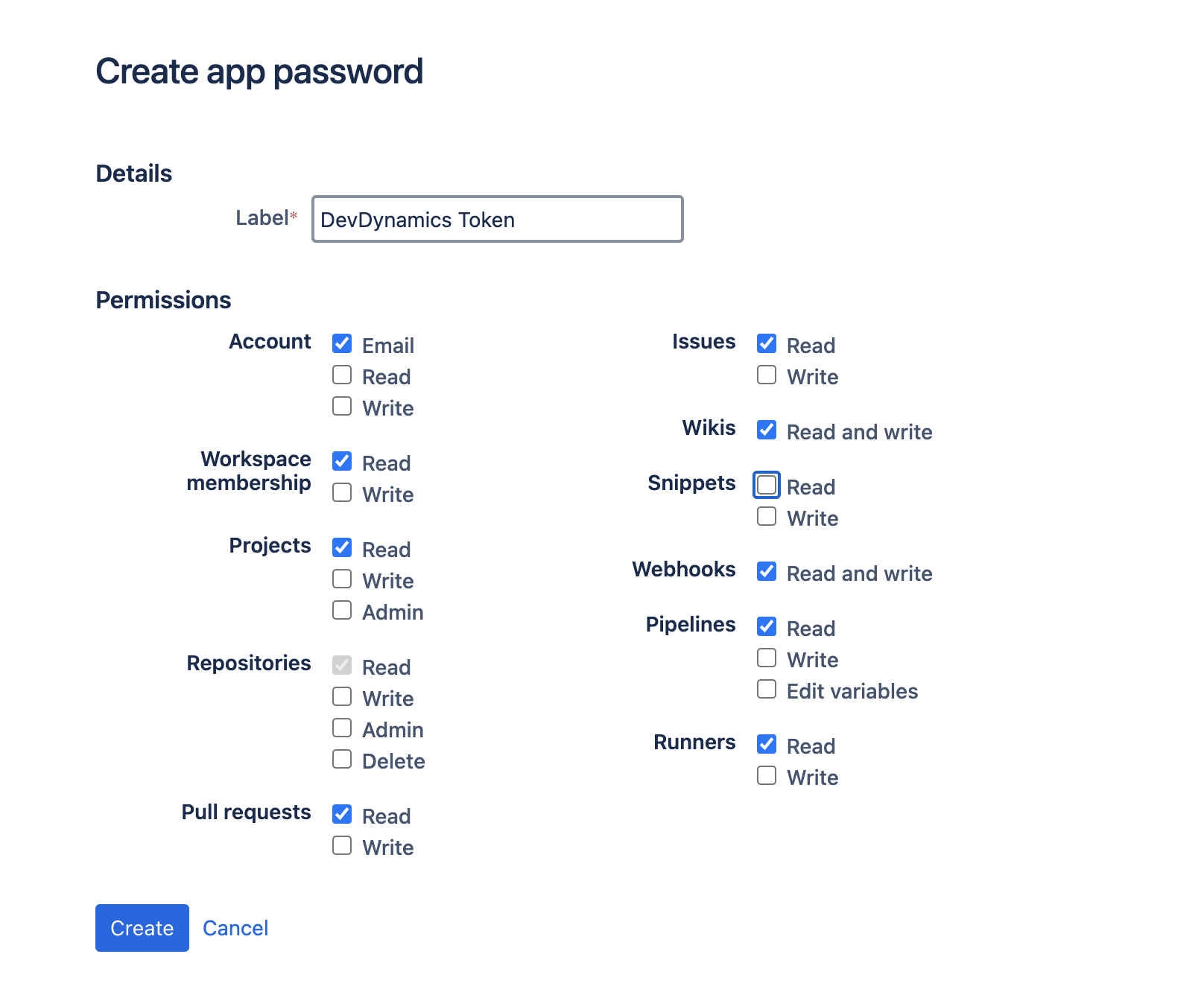
Add a label for your new app password. Select the following scopes for permission:
- Account: Email, Read
- Projects: Read
- Repositories: Read
- Pull Requests: Read
- Issues: Read
- Wikis: Read
- Webhooks: Read and Write
- Pipeline: Read
- Runners: Read
-
Save your new app password.
warningNote: This password will be visible only once.


Steps to derive a Username:
-
Go to Account Settings under Personal Settings and save your user name.

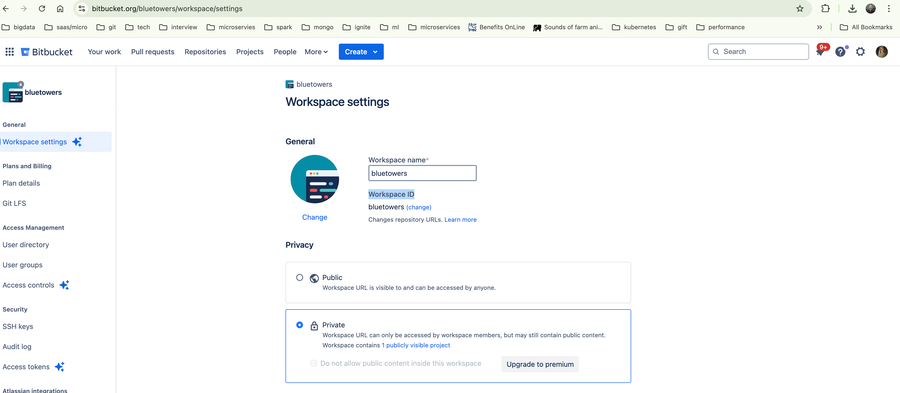
Steps to derive Workspace ID:
-
Go to Workspace Settings.
-
Save Workspace ID.
-
Paste the Bitbucket Username, App Password and Workspace ID to DevDynamics.
-
You have now successfully integrated your BitBucket account into DevDynamics.


